

Top 10 Free AI Tools for Students in 2026: The Ultimate Study Guide
Why AI is essential for students in 2026
Student life in 2026 is faster, more digital, and more demanding than ever. Coursework increasingly blends research, writing, data analysis, presentations, group projects, and multimedia assignments often all in the same week. AI is not “cheating software” by default; used well, it is a productivity multiplier that helps you study smarter, understand concepts deeper, and communicate your ideas more clearly.
The best part: Many of today’s most powerful platforms offer free tiers that are genuinely useful for everyday academic work. This guide breaks down the top 10 free AI tools for students in 2026, what each tool is, its key features, and exactly how it helps you learn, not just finish tasks faster.
Reader Disclosure: The AI tools featured in this guide are evaluated based on their free versions available as of March 2026. Please note that features, pricing, and policies of these platforms are subject to change by their respective developers. We are not officially affiliated with these tools; this resource is created solely for educational purposes to assist students in their research and study productivity.
💡 Quick Recommendation: If you want to master free AI tools and boost your academic productivity using generative AI, “AI For Beginners: A Practical Guide to Generative AI, Productivity” is the ultimate guide to take along.
The List: Top 10 Free AI Tools for Students in 2026
1) NotebookLM:

NotebookLM automatically creates structured study guides and notes from your lecture documents
What it is
NotebookLM is a study and research assistant designed around your own sources. You upload or link materials (like lecture notes, readings, PDFs, and Google Docs), and it helps you understand and work with them.
Key Features
- Source-grounded answers (responds using your uploaded material)
- Auto summaries and topic breakdowns
- Q&A over your notes (ask: “What did the professor mean by, “What…? ”)
- Study guide and outline generation
- Helps identify key themes and repeated concepts
How it helps students
NotebookLM shines when you’re overwhelmed by readings. Instead of skimming passively, you can actively question your materials:
- Turn a messy set of lecture notes into a structured revision guide
- Ask for definitions based on your course content, reducing off-topic answers
- Create practice questions for self-testing before exams. How to Use (Step-by-Step Guide): Getting started with Notebook LM is simple and intuitive. Follow these steps to transform the way you study:
- Access the Platform: Visit the official NotebookLM website and sign in using your existing Google account. Start a New Project: On the dashboard, click the “New Notebook” button. Give your notebook a specific name, such as “Biology Finals” or “World History Notes,” to stay organized. Upload Your Study Material: This is where the magic happens. You can upload PDF files, copy-paste text from your Google Docs, or even provide a URL to a specific website that you want to analyze. Interact with Your Documents: Once your sources are uploaded, use the chat box on the right. You can ask specific questions like, “Summarize the main arguments of this paper,” or “Create a list of 10 key dates from these notes.”
2) Perplexity:

Perplexity AI speeds up research by providing citations and reliable sources within its conversational answers
What it is
Perplexity is an AI-powered research companion that focuses on finding answers with references. It is especially useful when you need a quick overview and credible starting points for deeper research.
Key Features
- Answers with citations and links
- Quick topic overviews + follow-up questions
- “Research mode” style workflows (great for essays)
- Summarizes long web pages into key points
- Helps compare viewpoints across sources
How it helps students
When you’re starting an assignment, Perplexity can help you move from “I don’t know where to begin” to a clear plan:
- Quickly map a topic (definitions, debates, timeline, key scholars)
- Collect source links for your bibliography-building phase
- Avoid relying on one site by comparing multiple referenced sources
How to Use Perplexity AI: A Step-by-Step Guide
Perplexity AI is like a smarter version of Google Search. Here is how you can use it to get accurate answers for your assignments:
- Open the Tool: Go to Perplexity.ai on your browser. You do not even need to sign in for quick searches, but creating an account helps save your history.
- Type Your Question: In the search bar, type a specific academic question. Instead of just keywords, try full questions like, “What were the primary causes of the Industrial Revolution?”
- Choose Your Focus: Before hitting enter, you can click on the “Focus” button. If you are doing a research paper, select “Academic” to get results from scholarly journals and published papers.
- Review the Sources: Perplexity will give you a detailed answer. The best part is the small numbers (citations) next to the text. Click on them to see exactly which website or book the information came from.
My Personal Recommendation: If you are ever confused by a complex topic in your textbook, just paste the text into Perplexity and ask it to “Explain this like I’m 10 years old.” It will simplify the most difficult concepts instantly.
3) Gamma AI – Presentation Mode:

Gamma AI allows students to generate professional seminar presentations and slide decks in seconds
What it is
Gamma is a presentation and document creator that uses AI to turn prompts and outlines into visually clean slides, one-pagers, and mini-decks.
Key Features
- Generate slides from a topic or outline
- Clean design templates (looks professional fast)
- Quick edits: shorten, expand, rewrite sections
- Converts notes into structured presentation flow
- Shareable links for collaboration
How it helps students
If presentations make you panic, Gamma reduces the “blank slide problem”:
- Turn an essay outline into a logical slide deck
- Build seminar presentations quickly and then refine content
- Improve clarity by forcing your argument into a visual structure
How to Use Gamma AI: A Step-by-Step Guide
Gamma AI is an incredible tool for creating presentations, documents, and even webpages in seconds. Here’s how you can use it for your next class project:
- Sign Up for Free: Go to Gamma.app and create an account using your Google ID.
- Select Your Format: On the dashboard, click on “Create New AI.” You will see three options: presentation, document, or webpage. Most students choose “Presentation” for their slides.
- Enter Your Topic: Simply type what your presentation is about. For example: “The Impact of Climate Change on Agriculture” or “History of the Mughal Empire.”
- Edit the Outline: Gamma will automatically generate a draft outline for you. You can add more points, delete what you don’t like, and then click “Continue.”
- Choose a Theme: Pick a professional-looking design from the side menu. Once you click “Generate,” the AI will start building your slides, adding images and text automatically.
- Customize and Export: You can change any image or text manually. When you are done, click the “Share” button to download it as a PDF or PowerPoint (PPT) file.
My Personal Recommendation: If you are ever confused about how to start a presentation from scratch, just give Gamma a basic outline of your notes. It will turn your messy text into a beautiful, professional slide deck in less than a minute.
4) ChatPDF:

ChatPDF allows you to interact with your study materials and get instant answers from any PDF document
What it is
ChatPDF lets you “chat” with a PDF, asking questions, summarizing sections, and extracting key information from academic papers, textbooks, and reports.
Key Features
- Q&A on PDF content (“What is the main argument in section 3?”)
- Section summaries and key takeaways
- Quote and reference extraction (use carefully and cite properly)
- Faster navigation of long readings
- Helpful for dense research papers
How it helps students
ChatPDF is excellent for targeted study:
- Understand complex papers by asking for explanations in simpler language
- Pull out definitions, methods, limitations, and conclusions quickly
- Build a reading summary for literature reviews (then verify with the original)
How to Use ChatPDF: A Step-by-Step Guide
ChatPDF makes studying long documents as easy as chatting with a friend. Here is how you can use it for your exam preparation:
- Visit the Site: Go to ChatPDF.com. The best part is that you don’t even need to create an account for your first few files.
- Upload Your File: Click on the “Drop PDF here” button and select the document you want to study. You can also upload a file directly from a URL or a cloud folder.
- Wait for the Analysis: Once uploaded, the AI will quickly scan the entire document. It will even provide a short summary and suggest three potential questions you might want to ask.
- Start the Conversation: In the chat box at the bottom, ask anything related to the PDF. For example: “What are the 5 main points of this chapter?” or “Can you explain the conclusion in simple terms?”
- Get Citations: When the AI gives an answer, it often includes the page number. You can click on it to see exactly where that information is located in the original PDF.
My Personal Recommendation: If you are feeling confused by a very long research paper, ask ChatPDF to “Create a list of keywords and their definitions from this document.” This will save you hours of manual reading.
5) QuillBot:

QuillBot helps students rewrite and enhance the clarity of their essays using advanced AI paraphrasing
What it is
Quillbot is a writing assistant best known for paraphrasing, rephrasing, and improving clarity, useful when your draft feels awkward or repetitive.
Key Features
- Paraphraser with tone and fluency options
- Grammar and spelling support (depending on tier)
- Summarizer for short and long text
- Citation tools (varies by feature access)
- Helps reduce wordiness and improve readability
How it helps students
Quillbot is most valuable as an editing partner:
- Rewrite confusing sentences into clearer academic language
- Create a shorter version of long notes for revision
- Improve flow without changing your meaning
Tip: Use it to refine your own writing, not to disguise copied content.
How to Use QuillBot: A Step-by-Step Guide
Quillbot is the ultimate writing companion for students. Whether you want to rewrite a sentence or fix your grammar, here’s how to use it effectively:
- Open the Editor: Head over to QuillBot.com You can start using the paraphraser immediately without even signing up.
- Paste Your Text: Copy the paragraph you want to improve and paste it into the left-side box.
- Select a Mode: Choose a mode that fits your needs. As a student, the “Standard” mode is great for simple changes, while “Fluency” ensures your English sounds natural and professional.
- Adjust the Synonyms: Use the “Synonym Slider” at the top. If you want more creative changes, slide it to the right. If you want to keep it simple, keep it to the left.
- Click Paraphrase: Hit the green button, and within seconds, your new text will appear on the right. You can click on any word in the output to see a list of other word suggestions!
- Use the Grammar Checker: Don’t forget to switch to the “Grammar Checker” tab at the top to fix any hidden spelling or punctuation errors in your assignments.
My Personal Recommendation: If you are ever struggling about how to make your essay sound more academic, use the “Formal” mode (available in Premium, but even the Free version’s ‘Standard’ mode is excellent). It helps you avoid using “slang” and makes your writing look more expert.
6) Grammarly:

Grammarly AI provides real-time writing suggestions to improve clarity, fix mistakes, and enhance your essays
What it is
Grammarly is a writing correctness and clarity tool that checks grammar, spelling, punctuation, and style. The free version is widely used and still very helpful for students.
Key Features
- Grammar and spelling correction
- Clarity suggestions (reduce confusing phrasing)
- Tone hints (helpful for emails and formal writing)
- Works across many apps via browser extensions
- Basic proofreading for assignments and cover letters
How it helps students
Grammarly is like a final “quality control” layer:
- Clean up avoidable errors that lower marks
- Improve academic tone in essays and reports
- Write more professional emails to professors and supervisors.
How to Use Grammarly: A Step-by-Step Guide
Grammarly acts like a digital proofreader that ensures your writing is clear, mistake-free, and professional. Here’s how to make the most of it:
- Install the Extension: The best way to use Grammarly is to install the free Chrome Extension. This allows the tool to check your writing everywhere from Google Docs to your emails.
- Upload or Type: You can also go to Grammarly.com and click on “New” to paste your essay or document into their online editor.
- Check for Red and Blue Lines: Grammarly will underline mistakes in real time. Red lines indicate grammar or spelling errors, while blue lines suggest ways to make your sentences more concise.
- Accept Suggestions: Hover your mouse over any underlined word. A small box will appear with the corrected version and a brief explanation of why the change is needed. Just click it to apply the fix.
- Set Your Goals: Click on the “Goals” button on the right side. You can tell the AI if your writing should be “formal” (for school) or “informal” (for friends), and it will adjust its suggestions accordingly.
My Top Suggestion: If you are ever unsure about the tone of your assignment, check the “Tone Detector” icon at the bottom. It will tell you if your writing sounds confident, friendly, or formal, helping you stay on track with your professor’s requirements.
7) Notion AI:

Notion AI helps you organize studies by generating plans and summarizing notes
What it is
Notion AI is built into Notion’s workspace for notes, planning, databases, and project organization, great for students managing multiple subjects and deadlines.
Key Features
- Summarize class notes and meeting notes
- Generate to-do lists from messy text
- Rewrite content for clarity and structure
- Create study plans and revision schedules
- Organize research and references in one system
How it helps students
Notion AI supports the system behind your grades:
- Convert lecture notes into weekly study tasks
- Summarize readings and store them in subject pages
- Manage group projects with clear action items and timelines.
How to Use Notion AI: A Step-by-Step Guide
Notion AI is like having a smart assistant inside your digital notebook. It helps you organize your study schedule and draft content faster. Here’s how to use it:
- Set Up Your Page: Open Notion.com and create a new page for your subject, like “Semester 1 Planning” or “Science Research.”
- Activate the AI: On any blank line, simply press the ‘Space’ bar or type ‘/’ and select “Ask AI.” A small command box will appear.
- Give a Command: Tell the AI what you need. You can type, “Create a weekly study schedule for my exams” or “Brainstorm 10 ideas for my history essay.”
- Summarize Your Notes: If you have a long page of messy lecture notes, highlight the text and ask the AI to “Summarize” or “Extract Action Items.” It will give you a neat list of things you need to do.
- Fix Your Writing: Notion AI can also improve your sentences. If you’ve written a rough draft, use the “Make Longer” or “Change Tone” options to make your work sound more academic.
Expert Tip: If you ever feel stuck while starting a new assignment, use the “Help Me Write” feature. Just give it a one-sentence topic, and it will generate a professional outline to help you get moving instantly.
8) Wolfram Alpha:

Wolfram Alpha visualizes complex math and provides step-by-step solutions for students
What it is
Wolfram Alpha is a computational knowledge engine, excellent for math, physics, chemistry, statistics, and data-heavy subjects.
Key Features
- Step-by-step math support (varies by access level)
- Solves equations, calculus, matrices, graphs
- Unit conversions and scientific calculations
- Statistics help (distributions, regressions, plots)
- Reliable factual computations (less “chatty,” more precise)
How it helps students
For STEM students, Wolfram Alpha is a core tool:
- Check answers and validate calculation steps
- Explore graphs to understand behavior of functions
- Quickly compute results so you can focus on concepts.
Important: Still show your work as required by your teacher or exam rules.
How to Use Wolfram Alpha: A Step-by-Step Guide
Unlike a regular search engine, Wolfram Alpha calculates answers using its massive database of expert knowledge. Here’s how you can use it for your complex assignments:
- Visit the Site: Open WolframAlpha.com on your browser.
- Enter Your Problem: In the search bar, you can type mathematical equations, chemical formulas, or even physics questions. For example: “Integrate x² sin(x)” or “Distance from Earth to Mars.”
- Use Natural Language: You don’t need to be a coding expert. You can simply ask, “How many calories are in 3 apples?” and it will give you a complete nutritional breakdown.
- Review Step-by-Step Solutions: For math problems, Wolfram Alpha doesn’t just give the final answer. Click on “Step-by-step solution” to see exactly how the problem was solved (Note: This feature may require a Pro account, but the basic results are free).
- Compare Data: You can compare two things easily. Try typing “Microsoft vs. Apple” to see a side-by-side financial and historical comparison.
Smart Tip: If you ever feel puzzled by a difficult calculus problem or a chemistry reaction, just type the formula into Wolfram Alpha. It will provide you with graphs, properties, and even the historical context of that specific topic.
9) Canva:

Canva’s AI tools help students create professional infographics and visual study aids easily
What it is
Canva is a design platform used for posters, presentations, infographics, resumes, and social content. Its AI features help generate layouts, visuals, and copy faster.
Key Features
- Drag-and-drop templates for academic visuals
- AI-assisted design suggestions and resizing
- Infographic creation for reports and research posters
- Presentation templates that look modern
- Collaboration tools for group assignments
How it helps students
Canva helps you communicate visually—often a great advantage:
- Turn research findings into a clear infographic
- Create polished slides for class presentations
- Build CVs, portfolios, and scholarship applications.
How to Use Canva AI: A Step-by-Step Guide
Canva is now much more than just a drag-and-drop editor. Its new “Magic Studio” tools use AI to speed up your designing process. Here is how students can use it:
- Select a Project: Open Canva.com and click “Create a design.” Choose a format, like “Presentation” or “Poster,” to start.
- Use Magic Write: Click inside any text box and look for the “Magic Write” button (small stars icon). Type a short prompt, like “Write an intro about the importance of recycling,” and the AI will draft the text for you.
- Generate Images (Magic Media): If you can’t find the perfect stock photo, go to “Apps” and select “Magic Media.” Describe the image you want (e.g., “A futuristic library with robots”) and the AI will create it in seconds.
- Edit Photos (Magic Edit): Highlight any object in a photo and use “Magic Edit” to replace it. For example, you can select a tree and type “Change to a palm tree” to instantly update the scene.
- Animate Your Design: Use “Magic Animate” to make your presentation slides dynamic. Canva will choose the best transition and animation style for your entire deck with one click.
Creative Tip: If you ever feel stuck by a blank presentation canvas, start with a basic AI template. Just give Canva a one-sentence topic, and “Magic Design” will automatically create a draft presentation with matching layouts and graphics.
10) Tutor AI:

Tutor AI provides personalized, interactive courses to help students learn any subject
What it is
“Tutor AI” refers to AI tutoring-style tools designed to teach you concepts step-by-step like a personal tutor that can explain, quiz, and adjust difficulty.
Key Features
- Concept explanations in multiple styles (simple, detailed, analogy-based)
- Practice questions and quizzes
- Step-by-step problem solving (use responsibly)
- Study plans and spaced repetition prompts
- Instant feedback and clarification
How it helps students
Tutor AI tools are best when you are stuck:
- Ask for a simpler explanation until it “clicks.”
- Practice with custom quizzes aligned to your syllabus
- Learn actively instead of rereading the same page repeatedly
Best practice: Ask it to teach, not just “give the final answer.”
How to Use Tutor AI: A Step-by-Step Guide
Tutor AI is like having a private teacher available 24/7. It breaks down any complex subject into easy-to-learn modules. Here is how to use it:
- Enter Your Topic: Visit TutorAI.me and type in the search bar exactly what you want to learn. For example: “How do black holes work?” or “Basics of organic chemistry.”
- Choose Your Level: The AI will ask you to select your current knowledge level—from “Beginner” to “Expert.” This ensures the lessons are not too hard or too easy for you.
- Start the Modules: The tool will automatically create a “Course Outline” for you. Click on the first module to start reading the simplified explanation.
- Ask for More Detail: If a specific paragraph is too short, click the “Go Deeper” button. The AI will provide more examples and a more detailed explanation of that point.
- Quiz Yourself: After finishing a lesson, you can ask the AI to generate a quick quiz to test how much you’ve actually learned.
Helpful Tip: If you ever feel unfamiliar with a brand-new subject, don’t try to learn everything at once. Use the “Simplify” button in Tutor AI to get a basic summary first, then slowly move to the more difficult parts as your confidence grows.
Learning these AI tools is a big part of being digitally smart. To understand how these skills can help you in the long run, check out our detailed guide on How Digital Literacy Can Transform Your Life and Career.
While using free AI tools, understanding how machine intelligence actually works is essential. If you want a clear grasp of AI concepts, check out “Artificial Intelligence: A Guide for Thinking Humans” for an insightful look behind the technology.
Ethical AI Use & Plagiarism: A practical guide for students
AI can support learning, but it can also cause academic integrity problems if used carelessly. Here is a simple framework to stay safe and ethical.
Use AI for learning, not impersonation
Ethical uses:
- Summarizing your own notes and readings
- Brainstorming outlines and study plans
- Generating practice questions for revision
- Editing for grammar and clarity
- Getting explanations of concepts you do not understand
Risky or unethical uses (often plagiarism):
- Submitting AI-generated text as your original work
- Paraphrasing copied material to “hide” the source
- Generating citations you did not verify
- Using AI to complete take-home exams against rules
Follow your Institution’s policy
Many schools allow AI for:
- Proofreading
- Idea generation
- Study support
But they may require: - Disclosure (“I used AI for editing/brainstorming”)
- No AI in assessed writing (varies by course)
Always verify facts and citations
AI tools can:
- Misquote sources
- Invent references
- Oversimplify complex arguments
So: - Open and read the original sources
- Confirm author names, dates, titles, and page numbers
- Use your library databases where required
How to stay plagiarism-safe (quick checklist)
- Write your first draft in your own words
- Keep notes of your sources as you research
- If AI helped, use it like an editor/tutor, not a ghostwriter
- Cite all external ideas, data, and quotations
- Run a final integrity check: “Could I explain every paragraph aloud?”
By using this way, free AI tools for students become a learning advantage—not a risk.
Safety Tips for Students
“While AI tools like NotebookLM and Wolfram Alpha are revolutionizing the way we study, it is crucial for students to use them responsibly and ethically. Always remember that AI is a supportive assistant, not a replacement for your own critical thinking and creativity. One of the most important safety tips is to avoid sharing sensitive personal information, such as your home address, passwords, or private documents, with any AI platform. Furthermore, to maintain academic integrity, you should use these tools to understand complex concepts and organize your research rather than directly copying and pasting AI-generated answers for your assignments. Most educational institutions now use advanced AI-detection software, so it is best to treat these tools as a 24/7 personal tutor that helps you learn, rather than a shortcut to finishing your work. By balancing technology with your unique human intelligence, you can stay ahead in your studies while ensuring your digital footprint remains safe and professional.”
Pro-Tip
Note: Use AI tools strictly for learning and research purposes. Avoid copying and pasting entire assignments, as the goal is to enhance your understanding while preserving your own critical thinking and creativity.”
Conclusion: Study smarter with the right free AI stack
In 2026, success is not just about working harder; it is about using tools that help you learn efficiently and communicate clearly. A practical student AI toolkit might look like this: NotebookLM for your course materials, Perplexity for research starting points, ChatPDF for heavy readings, Grammarly/Quillbot for polishing drafts, Wolfram Alpha for computations, and Canva/Gamma for presentations, plus a Tutor AI for targeted practice.
AI tools can genuinely improve your academic life in 2026, but the real “grade boost” comes from how you use them. The most successful students don’t treat AI as a shortcut to finish assignments; they treat it like a study system that helps them understand faster, practice smarter, and present more clearly. If you build a small toolkit and use each tool for what it’s best at, you’ll save hours every week, and your work will usually look more structured, more polished, and more confident.
A simple way to start is to match tools to your workflow:
- For learning from your own materials, choose NotebookLM (best for lecture notes + readings) or ChatPDF (best for heavy PDFs).
- For research and topic exploration, use Perplexity to get quick overviews with sources, then verify using library databases.
- For writing improvement, rely on Grammarly for correctness and tone and Quillbot for rewriting awkward sentences and summarizing notes.
- For STEM problem checking and calculations, keep Wolfram Alpha as your reliable computation partner.
- For presentations and visuals, use Gamma for structured decks and Canva for design-heavy posters, infographics, and portfolios.
- For organization, Notion AI helps turn messy notes into action plans.
- For step-by-step learning, Tutor AI is great when you need tutoring-style explanations and practice questions.
Call to Action: Pick three tools today, one for study (NotebookLM/ChatPDF), one for research (Perplexity), and one for output (Grammarly/Gamma/Canva). Use them for one full week, track what saves you time, and keep what works. If you tell me your subject (e.g., CS, medical, business, arts) and assignment type (essays, labs, presentations), I can suggest the best “tool stack” and a weekly plan tailored to you.
Comparison Tables:
Table 1: Best Tool by Student Task
| Student Task | Recommended Tool | Best Free Feature |
|---|---|---|
| Researching Notes | NotebookLM | Smart Summaries |
| Finding Sources | Perplexity AI | Live Web Search |
| Polishing Essays | Grammarly | Grammar Check |
| Summarizing Papers | ChatPDF | Chat with PDFs |
| Rewriting Content | QuillBot | Paraphrasing |
| Study Organization | Notion AI | Workspaces |
| Math & Science | Wolfram Alpha | Step-by-step logic |
| AI Presentations | Gamma | Slide Generation |
| Visual Designs | Canva Magic Studio | AI Designing |
| Personal Tutoring | Tutor AI | Learning Paths |
Table 2: NotebookLM vs ChatPDF vs Perplexity (Study + Research)
| Feature | NotebookLM | ChatPDF | Perplexity AI |
|---|---|---|---|
| Best For | Personal notes & research | Quick PDF analysis | Web research & citations |
| Source Type | Docs, Slides, URLs | PDF Files only | Live Internet |
| Citations | Very High (Internal) | High (From PDF) | High (Web Links) |
| Output Type | Audio/Study Guides | Q&A Chat | Detailed Answers |
| Free Version | Generous (Google) | Limited daily pages | Unlimited Basic Search |
Table 3: Gamma vs Canva (Presentations & Visual Work)
| Feature | Gamma AI | Canva Magic Studio |
|---|---|---|
| Main Strength | Instant AI Presentation Decks | Creative Design and Visual Editing |
| Creation Speed | Super Fast (One Click) | Medium (Manual Customization) |
| Customization | Limited to Layouts | Professional Grade Control |
| Best For | Quick School Projects | Social Media & Posters |
| AI Tool Type | Generative AI Layouts | Magic Media and Text-to-Image |
Do not miss a single tool! Download the Ultimate Student AI Toolkit Checklist
to keep these powerful resources at your fingertips while you study.
FAQs (Students Ask This a Lot)
1) Are these AI tools really free?
Most of these tools offer free tiers that are enough for regular student use, but some features may be limited (daily usage caps, exports, advanced rewriting, etc.). If you hit limits, rotate tools depending on the task.
2) Which tool is best for exam preparation?
For most students:
- NotebookLM is best if you have lecture notes and readings to upload.
- ChatPDF is best if your “study material” is mainly PDFs (textbooks/papers).
Add Tutor AI for practice questions and explanations.
3) Which tool is best for writing essays?
Use a combination:
- Perplexity for research direction (with sources)
- Grammarly to polish grammar and tone
- QuillBot to improve clarity and reduce repetition in your own sentences
Always cite real sources and keep your argument original.
4) Can AI tools cause plagiarism?
Yes, if you submit AI-generated work as your own or use paraphrasing to hide copied content. The safest method is: write your own draft first, then use AI for editing, summarizing your notes, and tutoring explanations.
5) Should I cite AI tools in my assignments?
It depends on your institution’s policy. If your course requires disclosure, add a short note like “AI-assisted proofreading was used for grammar and clarity.” But you should cite original sources (books, papers, articles), not the AI output.
6) Which tool is best for math, physics, or engineering?
Wolfram Alpha is the most reliable for computations, graphs, and formulas. Use it to check steps and understand patterns; do not just copy answers.
7) What is the best tool for presentations without spending hours on design?
Gamma is best for instant structure and clean slides. If you need heavy visuals (infographics/posters), switch to Canva for final design.
8) Can these tools replace studying?
No. They can speed up learning, but you still need to do active recall, practice questions, and understand the material. The best approach is using AI to support proven study habits.
Recommended Books:
(1) Name of the Book: “Artificial Intelligence: A Guide for Thinking Humans“
(by Melanie Mitchell)

Overview of the Book:
No recent scientific enterprise has proved as alluring, terrifying, and filled with extravagant promise and frustrating setbacks as artificial intelligence. The award-winning author Melanie Mitchell, a leading computer scientist, now reveals its turbulent history and the recent surge of apparent successes, grand hopes, and emerging fears that surround AI.
In artificial intelligence, Mitchell turns to the most urgent questions concerning AI today: How intelligent—really—are the best AI programs? How do they work? What can they actually do, and when do they fail? How humanlike do we expect them to become, and how soon do we need to worry about them surpassing us? Along the way, she introduces the dominant methods of modern AI and machine learning, describing cutting-edge AI programs, their human inventors, and the historical lines of thought that led to recent achievements. She meets with fellow experts like Douglas Hofstadter, the cognitive scientist and Pulitzer Prize–winning author of the modern classic Gödel, Escher, Bach, who explains why he is “terrified” about the future of AI. She explores the profound disconnect between the hype and the actual achievements in AI, providing a clear sense of what the field has accomplished and how much farther it has to go.
Interweaving stories about the science and the people behind it, Artificial Intelligence brims with clear-sighted, captivating, and approachable accounts of the most interesting and provocative modern work in AI, flavored with Mitchell’s humor and personal observations. This frank, lively book will prove an indispensable guide to understanding today’s AI, its quest for “human-level” intelligence, and its impacts on all of our futures.
(2) Name of the Book: “Machine Learning and Artificial Intelligence: Concepts, Algorithms and Models“
(by Reza Rawassizadeh)
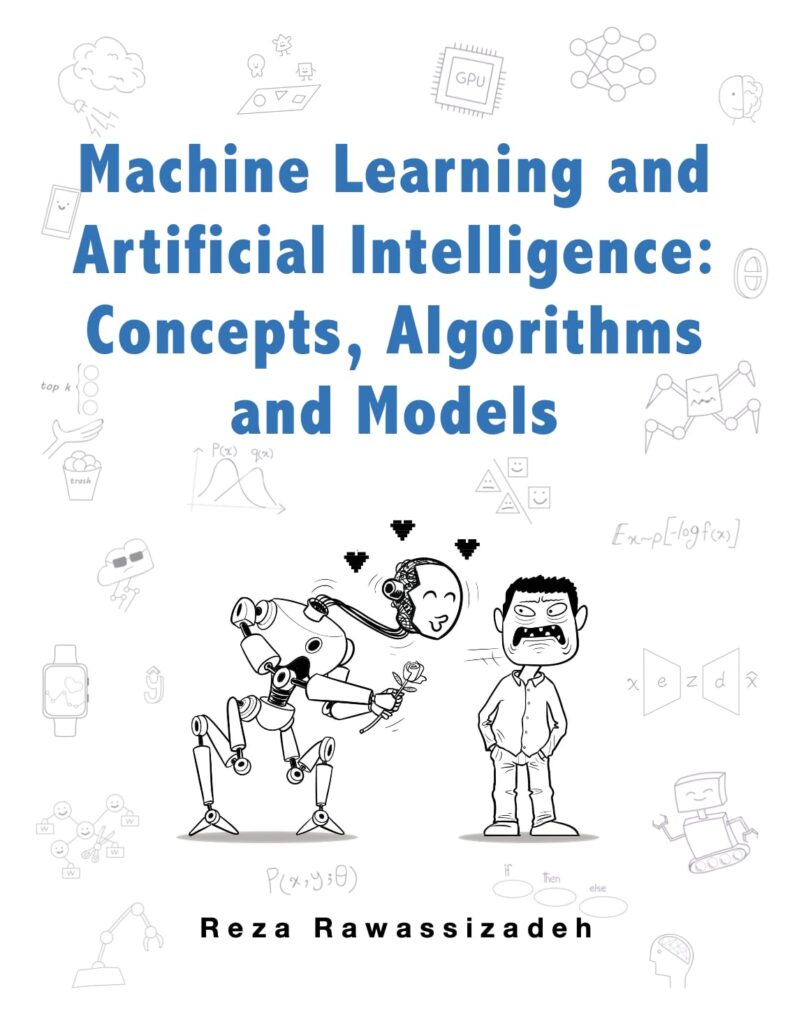
Overview of the Book:
Mastering AI, machine learning, and data science often means piecing together concepts scattered across countless resources—from statistics and visualizations to foundational models and large language models. This book, the result of eight years of effort, brings it all together in one accessible, engaging package. It clarifies artificial intelligence and data science, blending core mathematical principles with a clear, reader-friendly approach.
Unlike traditional textbooks that lean heavily on equations and mathematical formalization, the author starts with minimal prerequisites, layering deeper math as the reader progresses. Each concept, algorithm, or model is unpacked through clear, hands-on examples that build the reader’s skills step by step. It strikes a balance between theoretical foundations and practical application, serving as both an academic reference and a practical guide. Furthermore, the book uses humor, casual language, and comics to make the challenging concepts and topics relatable and fun. Any resemblance between the jokes and real life is pure coincidence, and no offense is intended.
(3) Name of the Book: “AI For Beginners: A Practical Guide to Generative AI, Productivity, and Using AI with Confidence (AI For Beginners Series) “
(BY : MICHEAL PHILLIPS)
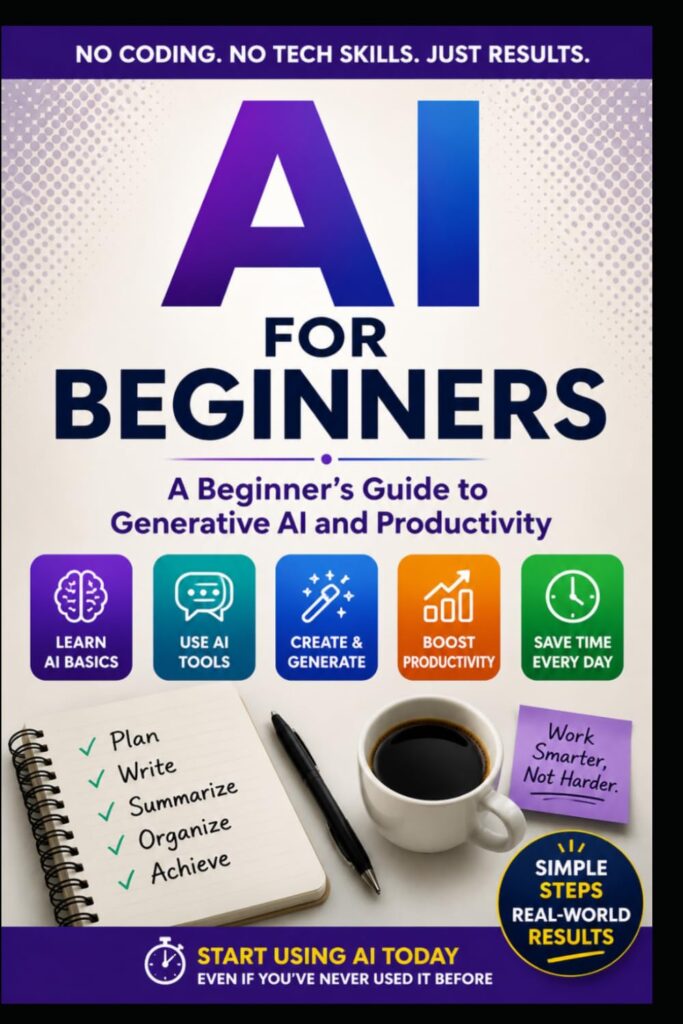
Overview of the Book:
Artificial intelligence is changing how people work, learn, communicate, and solve problems every day — but most beginners still feel overwhelmed, confused, or left behind.
This book was created to change that.
AI for Beginners is a practical, easy-to-follow guide designed for everyday people who want to understand AI without needing coding skills, technical jargon, or a computer science background. Through simple explanations, real-world examples, guided exercises, and beginner-friendly prompts, this book helps readers confidently start using modern AI tools in work, learning, creativity, and daily life.
Inside this book, you’ll discover:
- What artificial intelligence actually is — explained in plain English
- How tools like ChatGPT, Claude, and Generative AI work
- How to write better prompts to get smarter AI responses
- Ways to use AI for productivity, writing, organization, and learning
- How to save time and improve workflows with AI tools
- Common AI mistakes beginners make — and how to avoid them
- Practical AI examples for work, school, business, and everyday life
- How to use AI responsibly, confidently, and without overwhelm
- Beginner-friendly prompts and exercises after every chapter
- A simple path to building long-term AI confidence and adaptability
Whether you are a student, professional, entrepreneur, parent, retiree, freelancer, or simply curious about AI, this book gives you the practical foundation you need to start using AI effectively today.
You do not need coding experience.
You do not need technical skills.
You simply need the willingness to learn.
If you want a clear, beginner-friendly roadmap to understanding AI and using it in real life, this book will help you get started with confidence.